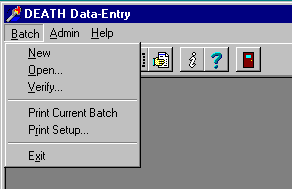
Batch Menu


Clicking on the 'Batch' main-menu option causes the 'Batch' menu to drop-down.


The 'Batch' menu options include:


New:
Creates a new batch and opens up the Data-Entry form so that you may add records to the batch. 
See help topic
'Entering Batches' for details.


Open:
Displays the 'Select Batch' dialog, which will contain a  list of all batches created under the current user's login ID.  Selecting a batch from this list will open up the Data-Entry form with this batch so that you may add, edit, or delete records contained in this batch.
See help topic
'Editing Batches' for details.


Verify:
Displays the 'Select Batch' dialog, which will contain a list of all batches NOT created under the current user's login ID.  Selecting a batch from this list will open up the Verification form.
See help topic
'Verifying Batches' for details.


Print Current Batch:
Generates a report for the currently selected batch and displays it in the 'Print Preview' form. You can print hardcopy of the reportby clicking the 'Print' button on the 'Print Preview' form.
See help topic
'Print Current Batch' for details.


Print Setup:
Displays the Windows Printer Setup dialog, where you may select from the list of printers available to your computer, and set printer options like orientation and paper-size.
See help topics
'Print Setup'  and 'Print Setup Dialog' for details.


Exit:
Shuts down the DEATH Data-Entry Application.


[ CONTENTS